Kubernetes
What this course will be about
This course
- Hands-on
- VMs in a public cloud
- Breaks, lunch break
- Questions? Ask immediately
Containers

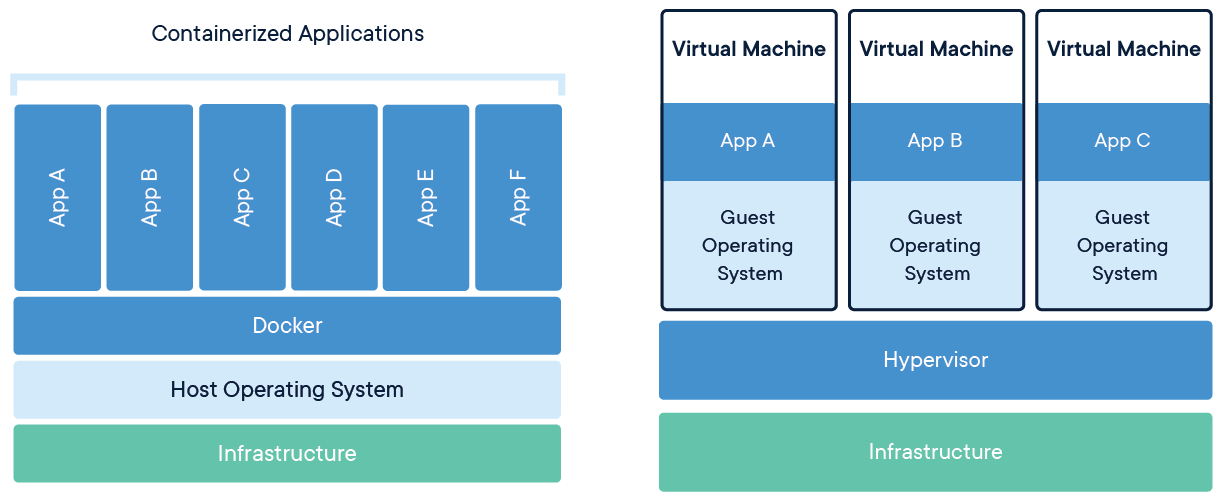
Containers
- Rectangles in other rectangles...

Containers
- ... but in fact, processes!
$ docker ps
CONTAINER ID   IMAGE     COMMAND                  CREATED         STATUS         PORTS     NAMES
503ef5987c65   nginx     "/docker-entrypoint.…"   2 minutes ago   Up 2 minutes   80/tcp    nginx

$ ps aux | grep nginx
root       17605  0.0  0.0  10644  5984 ?        Ss   20:20   0:00 nginx: master process nginx -g daemon off;
101        17670  0.0  0.0  11040  2616 ?        S    20:20   0:00 nginx: worker process
Containers: characteristics
- Isolated processes
- Quick to launch (usually), only the app processes. Not the whole system
- Quick to stop (usually)
Containers: why
- Portability
- Dependencies
- Scaling possibilities
- Consistency across environments
- Continuous integration, continuous delivery
- Possiblity to use multiple platforms
- Cloud?
- Physical machines?
- Hybrid cloud?
Docker review
- Difference image vs container
- Running containers in Docker
Docker review
- Image vs container?
- program vs process?
- binary/script vs instance
Running a container
$ docker run hello-world
Hello from Docker!
This message shows that your installation appears to be working correctly.

To generate this message, Docker took the following steps:
 1. The Docker client contacted the Docker daemon.
 2. The Docker daemon pulled the "hello-world" image from the Docker Hub.
    (amd64)
 3. The Docker daemon created a new container from that image which runs the
    executable that produces the output you are currently reading.
 4. The Docker daemon streamed that output to the Docker client, which sent it
    to your terminal.

To try something more ambitious, you can run an Ubuntu container with:
 $ docker run -it ubuntu bash

Share images, automate workflows, and more with a free Docker ID:
 https://hub.docker.com/

For more examples and ideas, visit:
 https://docs.docker.com/get-started/
Run a container in the background
$ docker run -d httpd
93debe1c8d8bfe2cf5cd26e9ba10548e210b2e98311938a2d88d39ad91d27591

$ docker ps
CONTAINER ID   IMAGE     COMMAND                  CREATED          STATUS         PORTS     NAMES
93debe1c8d8b   httpd     "httpd-foreground"       10 seconds ago   Up 7 seconds   80/tcp    thirsty_chebyshev
Run a container with environment variables
$ docker run -d --name mysql -e MYSQL_ROOT_PASSWORD=pass -e MYSQL_DATABASE=db mysql
c745223e5329102ffd052430f1ce0c0c895d417c9739fc4f032d11c3e8206418

$ docker ps --format 'table {{.Image}}\t{{.Names}}'
IMAGE     NAMES
mysql     mysql
Running a container interactively
$ docker run -ti --rm  fedora:33 /bin/bash

[root@66e3efe3863a /]#  date ; ls /root
Sat Mar 20 17:14:28 UTC 2021
anaconda-ks.cfg  anaconda-post-nochroot.log  anaconda-post.log  original-ks.cfg

[root@66e3efe3863a /]# exit

$ docker ps | grep fedora -c
0
Adding a volume into a container
$ mkdir data
$ docker run -ti --rm -v $(pwd)/data:/data  ubuntu bash

root@a3d53a02f2cc:/# echo "Best from $(hostname), $(date)" > /data/regards
root@a3d53a02f2cc:/# exit

$ cat data/regards
Best from a3d53a02f2cc, Sat Mar 20 17:27:19 UTC 2021
Dockerfile & build
$ ls
Dockerfile

$ cat Dockerfile
FROM alpine
MAINTAINER Ondrej Adam Benes <obenes0@centrum.cz>
CMD ["echo", "Hey", "there!"]

$ docker build -t hey-there:test .
Sending build context to Docker daemon  2.048kB
Step 1/3 : FROM alpine
 ---> 28f6e2705743
Step 2/3 : MAINTAINER Ondrej Adam Benes <obenes0@centrum.cz>
 ---> Running in 85d407e8d1a0
Removing intermediate container 85d407e8d1a0
 ---> c3adc32fef29
Step 3/3 : CMD ["echo", "Hey", "there!"]
 ---> Running in 1406bc51694f
Removing intermediate container 1406bc51694f
 ---> 3f5ebed9c956
Successfully built 3f5ebed9c956
Successfully tagged hey-there:test

$ docker run --rm hey-there:test
Hey there!
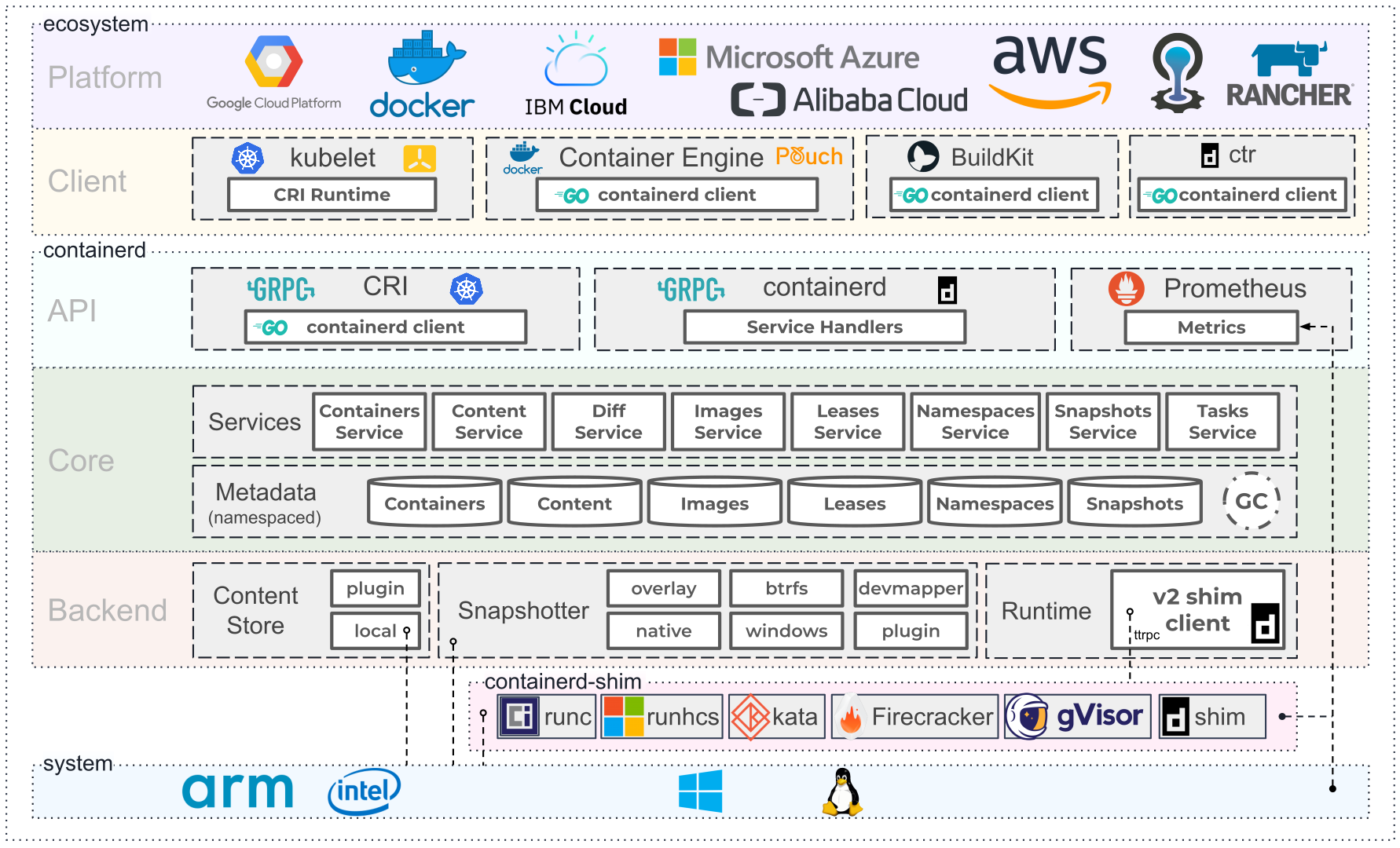
containerd architecture

Lab access
- Distribute keys and domain names
What is Kubernetes?
Why Kubernetes?
- Containers
- Application high availability, self-healing to some extent
- Load balancing
- Application versioning
- Application scaling
- Automatic storage assignment to apps
- AUTOMATICALLY (if configured)
Kubernetes architecture

Kubernetes architecture

Kubernetes: declarative system with reconciliation
- Eventually consistent
- Ceaselessly trying to achieved the desired (declared) state as written in Etcd database
Kubernetes: management and installation
- kubectl
- Many Kubernetes distributions exist
Definitions in Kubernetes
Definitions in Kubernetes: YAML
apiVersion: v1
kind: Pod
metadata:
  creationTimestamp: null
  labels:
    run: nginx
  name: nginx
spec:
  containers:
  - image: nginx
    name: nginx
    resources: {}
Definitions in Kubernetes: JSON
{
    "kind": "Pod",
    "apiVersion": "v1",
    "metadata": {
        "name": "nginx",
        "creationTimestamp": null,
        "labels": {
            "run": "nginx"
        }
    },
    "spec": {
        "containers": [
            {
                "name": "nginx",
                "image": "nginx",
                "resources": {}
            }
        ],
        "restartPolicy": "Always",
        "dnsPolicy": "ClusterFirst"
    },
    "status": {}
}
Our playground and how to move around
kubectl bash-completion
- kubectl completion bash > ~/.kubectl_completion
- echo "source ~/.kubectl_completion" >> ~/.bashrc
- . ~/.bashrc
Simple application
- Remember pods?
- kubectl run nginx --image=nginx
kubectl get
- kubectl get all
- kubectl get <resource type> [<name>] [-o yaml|json]
- kubectl get events [-w]
kubectl describe
- kubectl describe <resource type> [<name>]
kubectl api-resources
- kubectl api-resources
- kubectl api-resources -o wide for verbs (important for RBAC)
kubectl explain
- kubectl explain <api.resource.of.your.interest>
Help in kubectl
- bash completion
- kubectl help
- kubectl <command> --help
Let's play!
- exercises/k8s/pods
- Kubernetes pods: containers wrapped
- Imperative vs. declarative
- YAML and Kubernetes
- Pods the declarative way
Playground: get to know your cluster
- Install kubectl bash completion and make sure it works
- Run pod called nginx from the image nginx
- How many pods run in your cluster?
- What is the container ID of the nginx pod?
- How many nodes are there in your cluster and what are their names?
- Do your cluster nodes have enough memory available?
- There is a resource of type Service in your cluster. Print its definition in YAML.
- Where in the definition of Pod can you see the definition of containers?
- What are the shortnames for resources of type Service and Persistent volume?
- How do you print out human-readable info on a pod, without displaying its YAML or JSON?
- Examine latest events in the cluster
Imperatively vs declaratively
- kubectl <action> vs YAML manifest
- Write manifests by hand?
Pods
- An envelope around containers
- The smallest deployable unit
- May contain more than one container
- Some of the kernel namespaces are common for all the containers in the pods
- Runs on one node, all the containers
- Ephemeral
- YAML
Running a pod
- Imperatively
- kubectl run <name> --image=<image>
- Declaratively
- kubectl run <name> --image=<image> --dry-run=client -o yaml > my-pod.yaml
- kubectl apply -f my-pod.yaml
Deleting a resource
- kubectl delete <resource> <name> [name2] [nameN]
Accessing, or exposing, your application: Services
- Exposes the app
- In-cluster DNS subdomain (CoreDNS)
- Abstraction
- IP of ephemeral pods ➞ DNS record to all endpoints, healthy pods
- For user ⭤ app, but also backend ⭤ frontend
Accessing your application: Services
- Types:
- ClusterIP
- In-cluster IP, not visible outside of cluster
- NodePort
- Random port on the node ⭤ targetPort in the pod
- LoadBalancer
- For cloud deployments or dedicated LB IPs in your environment
- ExternalName
- For accessing apps hosted outside of the clusterem
- Headless
- No load balancing, used with StatefulSets
Accessing your application: Services
- Exposed port (for example, 443) may point to a different port in the container
- Difference between port and targetPort
- If an app is exposed, there is/are endpoint
Exposing the nginx pod, and accessing it
- Imperatively
- kubectl expose pod <name> [--port=##] [--target-port=##]
- Declaratively
- kubectl expose pod <name> [--port=##] [--target-port=##] --type=NodePort --dry-run=client -o yaml > my-svc.yaml
- kubectl apply -f my-svc.yaml
- kubectl get svc
- curl http://$(minikube ip):<port>
Playground: deployment of a simple app and exposing it, pt 1
- Imperatively:
- Run pod named animal-1 using the image obenes/animal
- Include an environment variable definition within the pod called ANIMAL; value of your choice
- Expose the pod by a service of type NodePort. The app listens on port 80
- Use curl or http or other client to see what the app returns
- curl $(minikube ip):<external port>
Playground: deployment of a simple app and exposing it, pt 2
- Declaratively:
- Run pod name animal-2 using the image obenes/animal
- Include an environment variable definition within the pod called ANIMAL; value of your choice
- Expose the pod by a service of type ClusterIP so that the port is 8080
- Beware of the targetPort value. This is the port the app listens on
- ssh to minikube using minikube ssh and use curl to display what the app returns
- Exit from minikube by exit or control-d
Accessing the web app from ... web: Ingress
- Service: exposes within cluster
- Ingress: access to your web app from the net
- Assumes an ingress controller (often Nginx)
- Ingress: YAML transformed by ingress controller to the controller's config file
- Can be combined with cert-man for automatic handling of SSL certs
- More advanced: Gateway API, implemented by several service meshes, etc.
- Ingress in Kubernetes docs
Playground: exposing the app to internet
- Expose your animal pod to internet
- Use Ingress resource for that
- Your domain (host): animal.vmXX.obenes-training.com
- Watch out, use:
- spec.ingressClassName: nginx
- spec.rules.host: animal.vmXX.obenes-training.com
Application scaling: Deployments
- Too many requests to your app?
- Bug in the app?
- Add copies!
- Deployment!
- Scaling and high availability
Deployment
- Resource encompassing pods
- Creates another resource, ReplicaSet: group of identical pods (pods' name differs)
- ReplicaSet maintains a given number of copies - replicas - of pods
- Deployment is versioned
- Manages a whole set of pods
- Set a new image (new tag)
- Roll back to previous version if a bug is detected
- (Auto)scaling if number of requests is high
Deployments
- Imperatively
- kubectl create deployment <name> --image=<image> --replicas=#
- Declaratively
- kubectl create deployment <name> --image=<image> --replicas=# --dry-run=client -o yaml > deployment.yaml
- Edit YAML deployment.yaml
- kubectl apply -f deployment.yaml
Exposing/accessing a deployment
- Same as when exposing a pod, only for deployment
A note regarding tag :latest vs :othertag
- deployment.spec.template.spec.containers.imagePullPolicy
- No tag defaults to :latest, and :latest ⇒ imagePullPolicy becomes Always
- Beware of implications:
- Image may be pulled every time the deployment is created ⇒ different version
- Pods in the deployment are restarted
- Otherwise, default is IfNotPresent
- Images reference
Playground: deployments
- Delete resources created in the last exercise
- Declaratively:
- Create deployment named web using image httpd
- Deployment should have 3 replicas
- Expose the deployment on port 8000. The containers listen on port 80
- Edit the deployment's YAML file so that imagePullPolicy becomes IfNotPresent
- Apply the YAML file
Changes in and versioning deployments: rollouts
- Why rollouts?
- pause/resume rollout
- Versioning, complete definition of the deployment
- In case the Pod template changes
- kubectl rollout
- kubectl set
Working with rollouts
- Set a new image (tag)
- What happens with the deployment
- Check status
- kubectl rollout status deployment <name>
- pause: don't deploy new version just yet
- kubectl rollout pause deployment <name>
- resume: apply changes made in the meantime!
- kubectl rollout resume deployment <name>
- kubectl --record=true set ...
When something goes wrong: rollback
- Examine previous versions
- kubectl rollout history deployment <name>
- kubectl rollout history deployment <name> --revision=#
- kubectl rollout undo deployment animal [--to-revision=#]
Rollout and high availability
- Question: multiple pods, recreate them all?
- Possible, but often preferrable to redeploy in batches
- One by one, ten by ten, 25% by 25%...
- deployment.spec.strategy.rollingUpdate.maxUnavailable
- deployment.spec.strategy.rollingUpdate.maxSurge
Playground: Rollouts, part 1
- Imperatively or declaratively:
- Delete previous deployments
- Create a new deployment caled animal with 7 replicas using the image obenes/animal:plain
- The containers should have the environemnt variable named ANIMAL set to animal of your choice
- Examine the created deployment
- Expose the deployment animal. The Service should be names animal and the exposed port should be 8000
- Bear in mind that containers running image obenes/animal:plain listen on port 80.
- Examine the history of rollouts of deployment animal, have a look at the rollouts' YAML
Playground: Rollouts, part 2
- Watch pods in your second terminal
- Set a different tag in your deployment: obenes/animal:html
- Have a look into rollouts of your deployment
- Roll your deployment back to before the change of image to obenes/animal:html
Horizontal vs vertical scaling
- More replicas of an app?
- Horizontal scaling
- Deployments ⇒ ReplicaSets
- Adding more memory, CPU to your pods?
Resources and metrics
- Metrics available always (assumes metrics-server running)
- If Prometheus/KEDA or other systems are available:
- Any metrics from these systems can be used for scaling
Resources and metrics
- More requests ⇒ more resources
- But...
- ... Bugs?
- Starve the whole node? Other apps running there as well
- Let's set also limits
- Complex topic. CPU throttling, for example
- Not enough memory for a container in a pod ⇒ OOM kill
- kubectl top
Resource-usage-based scaling
- API path in pods: pod.spec.containers.resources
- API path in deploymentsh: deployment.spec.template.spec.containers.resources
- requests = minimum, used during scheduling
- limits = maximum, we can't exceed this
- Memory units: base ten or binary units, M, Mi, G, Gi, etc.
- CPU units: milicores, m, 1/1000 of CPU time
Horizontal pod autoscaler
- Kubernetes, so why not autoscaling?
- Possible!
- HorizontalPodAutoscaler
- autoscaling API group
- kubectl autoscale deployment <name> --max=## --dry-run=client -o yaml
Playground: setting system resource usage
- Create a deployment from image obenes/nette with 2 replicas
- Container should have 10m CPU available and 100Mi of memory
- limits and requests should be the same
- Use kubectl top to see the changes
- Expose the deployment and create an ingress for it, domain: nette.vm##.obenes-training.com
Labels a selectors
- Mention services because if service selector does not match pods (thus deployment's lables), pods are not exposed
- Labels: key/value pairs resource's metadata
- Divided by a comma when used with kubectl
- Selectors: select all the resources that conform to the key/value combination
- Labels & selectors reference
Playground: labels and selectors
- Look at the definition of Service animal from the previous playground
- Try to understand the connection between selectors in the Service and the selected pods
- Run pod named nginx using image nginx with labels environment=test and customer=random
- Expose the pod on port 80, and make sure the pod's labels are selected
- Display all resources with labels environment=test and customer=random
- Examime labels and selectors in a deployment. How is deployment tied to its pods?
What about configuration and passwords?
Secrets and ConfigMaps
- Images?
- Containers?
- Ephemeral, should be stateless as such (any write should go to a volume)
- Same image for every environment, different configs
- External entity keeping the needed configuration or passwords?
- Yes!, ConfigMap and Secret
- etcd database in the cluster
ConfigMaps
- Store text but also binary data
- No encoding
- Key/value. Don't forget about the key during creation
- ConfigMap can store multiple entries, divided by keys
ConfigMaps
- Creating a ConfigMap with values given on the command line
- kubectl create configmap favourite-colour --from-literal=colour=black --dry-run=client -o yaml > cm-favourite-colour.yaml
- kubectl apply -f cm-favourite-colour.yaml
- Creating a ConfigMap from file. File name = key
- kubectl create configmap favourite-colour --from-file=colour --dry-run=client -o yaml > cm-favourite-colour.yaml
- kubectl apply -f cm-favourite-colour.yaml
- Overriding the key:
- kubectl create configmap favourite-colour --from-file=my-key=colour
Secrets
- Similar to ConfigMaps
- base64 encoding
- Sémantická check
- generic: no check
- tls: TLS certificates
- docker-registry: dockercfg format
- kubectl create secret generic app-access --from-file=password
- kubectl create secret tls tls-secret --cert=tls.cert --key=tls.key
Using ConfigMaps and Secrets
- Using these = making them available to containers
- As environment variable:
- pod.spec.containers.env.valueFrom.configMapKeyRef
- pod.spec.containers.env.valueFrom.secretKeyRef
- As a mount, volume:
- pod.spec.containers.volumeMounts
- pod.spec.volumes.configMap
- pod.spec.volumes.secret
- API api path to containers in a deployment
- deployment.spec.template.spec.containers
Playground: ConfigMaps
- Delete the animal deployment
- Create a ConfigMap called animal
- The key is ANIMAL and value is your favourite animal
- Examine the created ConfigMap
- Create a new deployment named animal, image obenes/animal
- Make sure the containers have environment variable ANIMAL, provided by the ConfigMap animal
- Number of replicas: 3
Playground: Secrets
- Create a Secret mysql with the following keys:
- MYSQL_ROOT_PASSWORD
- MYSQL_DATABASE
- MYSQL_USER
- MYSQL_PASSWORD
- Examine the created secret
- Run pod named database using image mysql
- The keys of the mysql ConfigMap should appear in the container as env variables of the same name
- Have a look at all the MYSQL_* variables from within the pod
- One-time env command or
- Running bash and then env
Namespaces
- Virtual space for everything connected to an app
- Reason Kubernetes is used in multitenant environments
- namespace field in resources' metadata
- Can be subject to
- Resource quotas
- Network policies
- kubectl api-resources --namespaced=true
- kubectl api-resources --namespaced=false
- Namespaces docs
Namespaces and context
- The famous kubeconfig, typically ~/.kube/config or one identified by --kubeconfig
- Possibility to switch between clusters. namespaces
- context combines cluster, namespace, user. Not a Kubernetes resource
- kubectl config get-contexts
- Setting a new context
- kubectl config set-context <context-name> --cluster <cluster> --user <user> --namespace <ns>
- Switching to a context
- kubectl config use-context
- Mighty concept, one config for all clusters (kubectl config view --merge)
- Beware of what you do and where
Working with namespaces
- Create a namespace
- Set a new context
- kubectl config set-context --cluster <cluster> --user <user> --namespace <ns> <context-name>
- Switch to the context
- kubectl config use-context <context-name>
- Delete namespace: Watch out, deletes all the resources within
- kubectl delete ns <ns-name>
- Remove context from config file
- kubectl config delete-context <context-name>
ResourceQuotas and namespaces
Playground: Namespaces, contexts, resource quotas
- Create namespace nette-project
- Create context nette-project reflecting the cluster, user, and namespace nette-project
- Switch to context nette-project
- Apply ResourceQuota on namespace nette-project
- CPU limits and requests should be 700m
- Memory limits and requests should be 200Mi
Persistent volumes and persistent volume claims
- Containers: ephemeral, stateless. How to store data?
- Persistent Volume:
- Abstraction above storage
- Many different types of storage supported
- Manual provisioning as well as automatic using StorageClass
- Persistent Volume Claim
- Storage request
- Used as volume in a pod definition
- Reason: abstraction. Let's not care about how to get storage, let's just get it
- PVs, PVC docs
Persistent Volumes, PVs
- Choose type, EmptyDir is enough for tests
- Choose capacity, e.g. 1Gi
- Pick access mode persistentvolume.spec.accessModes
- Common: ReadWriteOnce, sometimes ReadWriteMany
- Not in use any more? (persistentvolume.spec.persistentVolumeReclaimPolicy)?
- Retain? Delete?
- Behaviour of persistentVolumeReclaimPolicy depends on implementation
- Creation of PVs, PVCs: declaratively
- StorageClass for automatic provisioning
Persistent Volume Claims
- Capacity
- Access mode
- Type
- Optionally pairing with a PV
Playground: PV and PVC
- Work declaratively
- Create a Storage Class named local-storage-class with the parameter volumeBindingMode: WaitForFirstConsumer
- Create PV pv-01 v local-storage-class
- PV pv-01 should be of type local and the path in the node should be /exports/pv-01
- PV pv-01 should have capacity of 1Gi with the access mode of ReadWriteOnce
- Create Persistent Volume Claim named pvc-01``that expects a PV from ``local-storage-class
- PVC pvc-01 requests 1Gi of storage with access mode of ReadWriteOnce
- Run pod persistent-storage-test that uses pvc-01 as volume
- Pod persistent-storage-test should run from image busybox
- Pod mounts PVC pvc-01 on /mnt/persistent
- Command running in the pod: while true ; do date >> /mnt/persistent/dates ; sleep 3 ; done
- Check the file /exports/pv-01/dates in the minikube node
- Use minikube ssh to connect to minikube
StatefulSets
- Deployments: stateless
- StatefulSets:
- Provide identity to pods
- Each pod has their own storage (a template of PVC). With 3 replicas, 3*the storage space
- Used with headless services, ClusterIP: none
- StatefulSets docs
Playground: StatefulSets
- Create a StatefulSet named web-persistent
- StatefulSet runs from image nginx and has 3 replicas
- List storage classes in the cluster. You should see exactly one, remember its name
- The PVCs in the StatefulSet
- Should be mounted in the containers on /usr/share/nginx/html/
- Should come from the available storage class
- Examine the PVs created after the StatefulSet was created and note down the paths
- On minikube (minikube ssh), go to the PVs' paths and create a unique index.html for each of the replicas
- Expose the StatefulSet by a headless Service
- Optionally, create an Ingress for the StatefulSet
- Observe how the content of the StatefulSet changes when accessed by curl or http
Pod state monitoring: Startup, Liveness, and Readiness Probes
- Requests or commands that check whether
- container started
- container is ready
- container is alive
- HTTP apps: request to an important path (Liveness HTTP)
- gRPC apps: gRPC check (Liveness gRPC)
- TCP apps: is the port open? (Liveness TCP)
- Other: a command (Liveness command)
- Path in the Pod API:
- pod.spec.containers.startupProbe
- pod.spec.containers.readinessProbe
- pod.spec.containers.livenessProbe
- Probes docs 1
- Probes docs 2
Playground: Probes
- Create Deployment with 3 replicas named nginx where
- Image is nginx
- readinessProbe sends HTTP request to /
- livenessProbe sends HTTP request to /
- Create Deployment with 3 replicas named fedora in which
- Command sleep infinity is running
- Image is fedora:33
- readinessProbe runs ls /
- livenessProbe runs ls /usr
Jobs, Cronjobs
- (Regular) one-off actions
- Backups, dumps...
- Pod, just a bit different one. Not restarted after completion
- Stops running after N completions
- Parallel run of multiple pods using parallelism
- Job:
- Cronjob:
- job.spec.
- job.spec.template.spec
- cronjob.spec
- cronjob.spec.jobTemplate.spec
Running a Job
- Imperatively
- kubectl create job <job-name> --image=<image> -- command to run
- kubectl create job ls-job --image=fedora:32 -- ls /tmp
- Declaratively
- kubectl create job ls-job --image=fedora:32 -- ls /tmp --dry-run=client -o yaml > ls-job.yaml
- kubectl apply -f ls-job.yaml
Running a Cronjob
- Imperatively
- kubectl create cronjob <job-name> --image=<image> -- command to run
- kubectl create cronjob print-date --schedule="1 * * * *" --image=fedora:32 -- date
- Declaratively
- kubectl create cronjob print-date --schedule="1 * * * *" --image=fedora:32 --dry-run=client -o yaml -- date > cj-print-date.yaml
- kubectl apply -f cj-print-date.yaml
Playground: Jobs and Cronjobs
- Imperatively or declaratively
- Create a Job running the image alpine:
- Command to run: date ; ls /
- Up to 4 pods can be running at once
- Create a Cronjob running the image busybox:
- Command to run: date; echo Hey there!
- Runs every minute
- Examine the resources created and make sure they finished successfully
Network Policies
- Controls the network traffic (OSI 3 or 4)
- Pod ⭤ entities on the network
- Other pods
- Namespaces
- IP ranges
- Default when no NP are defined: all communcation allowed
- If NetworkPolicy applied, it defines what is allowed
- NetworkPolicy does not have deny rules. Allow what you need, rest is denied
- Assumes a network plugin supporting NetworkPolicies
- NetworkPolicy: comes with Kubernetes. Other resources with different implementations exist
- Network policies docs
- ahmetb's git repository
Playground: Network policies
- Create a Network Policy named allow-ingress-http
- It applies to deployment nginx
- Deployment nginx runs image nginx and exists in 3 replicas
- Allow traffic the deployment's pods from the namespace default, and only on port 80
- No Egress rules applied in this network policy
Sidecars, init containers
- Any prerequisites your app has?
- A different functionality to add?
- Logging (Fluentd, Fluentbit, ...)
- Metrics exposed (Prometheus, ...)
- Service mesh, network proxy (mTLS, detailed info on traffic, ...)
- Init containers and sidecar containers!
- Not dependent on the main app, different pace of development, functionality by 3rd party...
- How? initContainers, containers field in the Pod's spec
- pod.spec.initContainers
- deployment.spec.template.spec.initContainers
- Init containters docs
- Sidecars
- Logging sidecar
- Native Sidecar Containers in 1.28
Playground: Init containers
- Create pod web-1 from image nginx
- Init container changes /usr/share/nginx/html/index.html so that it contains Hello from web-1!
- Expose the pod on port 80, possibly create an ingress
- Check whether index.html was changed using an http client
Debug
- Logy
- Events
- Describe
- Kde není shell kubectl debug
- kubectl debug myapp -it --image=ubuntu --share-processes --copy-to=myapp-debug
- Debug containers docs
Service account ⭤ pod
- Service account exists
- Field in the pod definition: pod.spec.serviceAccountName
- In deployment: deployment.spec.template.spec.serviceAccountName
Role-based access control: RBAC
- Role: A set of privileges. Tied to a namespace. See kubectl api-resources -o wide for verbs
- RoleBinding: Ties a Role to User, Service account, Group
- ClusterRole: A set of privileges. Cluster-wide
- ClusterRoleBinding: Ties a ClusterRole to User, Service account, Group
- Role, ClusterRole
- What operations: <verb>
- On what resources
- role.rules
- clusterRole.rules
- RBAC docs
Playground: Service accounts and RBAC
- Create Service Account viewer
- Create Cluster Role view
- Tie Cluster Role view to Service Account``viewer``
- Run pod web from httpd image
- Make sure pod web runs with Service Account viewer
Helm installation
- Helm installation
- curl https://raw.githubusercontent.com/helm/helm/main/scripts/get-helm-3 | bash
Helm CLI
helm completion [terminal]
helm repo
- helm repo add <nazevrepa> <url-k-chartum>
- helm repo add grafana https://grafana.github.io/helm-charts
- helm repo update
helm pull
- helm pull [chart URL | repo/chartname] [...] [flags]
- helm pull --untar jetstack/cert-manager
helm install
- helm install [NAME] [CHART] [flags]
- helm install grafana grafana/grafana
- helm install --set x.y app repo/chart
- helm install --values moje-values.yaml app grafana-6.44.9.tgz
helm status
helm upgrade
- helm upgrade -f moje-values.yaml -f override.yaml cert-manager .
helm show
helm uninstall
helm template
- Check the final outcome
- Can be used if gitops is chosen, principle of templating first, then deploy
Work imperatively or declaratively?
- Imperatively
- Quicker
- More straightforward
- Not suitable for complex cases
- Resources not always implemented in CLI (PV, PVC, ...)
- Declaratively
- Slower
- Every case covered
- Versioning, enables GitOps
Next steps
- Video courses (LinkedIn Learning, Udemy, Coursera, ...)